

- Always current — MCP queries the live documentation directly, so your agent is never working from a stale search index or cached page
- Token efficient — web search retrieves full pages including navigation, markup, and boilerplate, all of which consume context window tokens. MCP returns only the structured content your agent actually needs, keeping responses faster and context usage lean
What your agent can do
Once connected, your AI agent can:- Query any Kit API v4 endpoint reference, including request parameters, response shapes, and authentication requirements
- Understand Kit App Store requirements, submission criteria, and app configuration options
- Look up plugin component library usage, content block flows, and automation node configuration
- Reference OAuth flows, webhook event schemas, and pagination patterns
- Make live API calls on your behalf — in supported agentic clients (such as Claude Desktop, Claude Code, and Cline), your agent can use the API reference to construct and execute Kit API requests directly, without you writing a single line of code
- Spin up a local OAuth server for testing — ask your agent to start a local redirect server so you can complete the OAuth authorization flow end-to-end in your development environment before shipping. See App Authentication for how to configure OAuth in your app and make authenticated API calls
Setup guides
Upgrading from the previous setup? Earlier versions of this guide used
kit as the config key. If you have an existing entry, rename it to kit-docs (or remove the old one) to match the new layout and avoid running two duplicate Kit servers in the same client.Claude Desktop
-
Open Claude Desktop and go to Settings → Developer → Edit Config, or open the config file directly:
- macOS:
~/Library/Application Support/Claude/claude_desktop_config.json - Windows:
%APPDATA%\Claude\claude_desktop_config.json
- macOS:
- Add the Kit Developer Docs MCP server:
- Save and restart Claude Desktop. The Kit docs will be available as a tool in all your conversations.
Claude Code
Run the following command in your terminal:Cursor
- Open Cursor and go to Settings → Tools & Integrations → MCP Tools → New MCP Server.
- Add a new server with the following configuration:
.cursor/mcp.json at the root of your project with the same configuration. See Cursor’s MCP guide for more details.
Windsurf
- Open Windsurf and go to Windsurf Settings → Cascade → MCP Servers → Add Server.
- Select HTTP/SSE as the server type and enter
https://developers.kit.com/mcpas the URL.
~/.codeium/windsurf/mcp_config.json directly:
Cline (VS Code)
- Open VS Code with the Cline extension installed.
- In the Cline sidebar, click the MCP Servers icon and then Edit MCP Settings.
- Add the Kit server:
Other ways to use AI with Kit docs
The MCP server is the recommended way to give your AI agent access to Kit’s developer documentation — it’s real-time, always up to date, and requires no manual steps. For AI clients that don’t yet support MCP, there are two additional options.llms.txt
llms.txt is a single file containing all the content in the Kit developer documentation hub, following an emerging industry standard for making web content accessible to LLMs. You can load it by pasting the URL directly into your AI client, or copying and uploading the file if your client doesn’t support URL reading:- Open in Claude
- Open in ChatGPT
- Cursor: Add
https://developers.kit.com/llms.txtas a docs source via Cursor’s @Docs feature - Other LLMs: Request your client to read from
https://developers.kit.com/llms.txt
llms.txt can become large enough to exceed some LLMs’ context windows. If that happens, use the page-level method below, or switch to the MCP server which retrieves only what’s needed on demand.
Page-level
For focused questions on a single topic, every page in the docs has a Copy page button in the top-right corner. This copies the page’s markdown content, which you can paste directly into any AI client — or use the Open in ChatGPT / Open in Claude shortcuts to start a conversation immediately.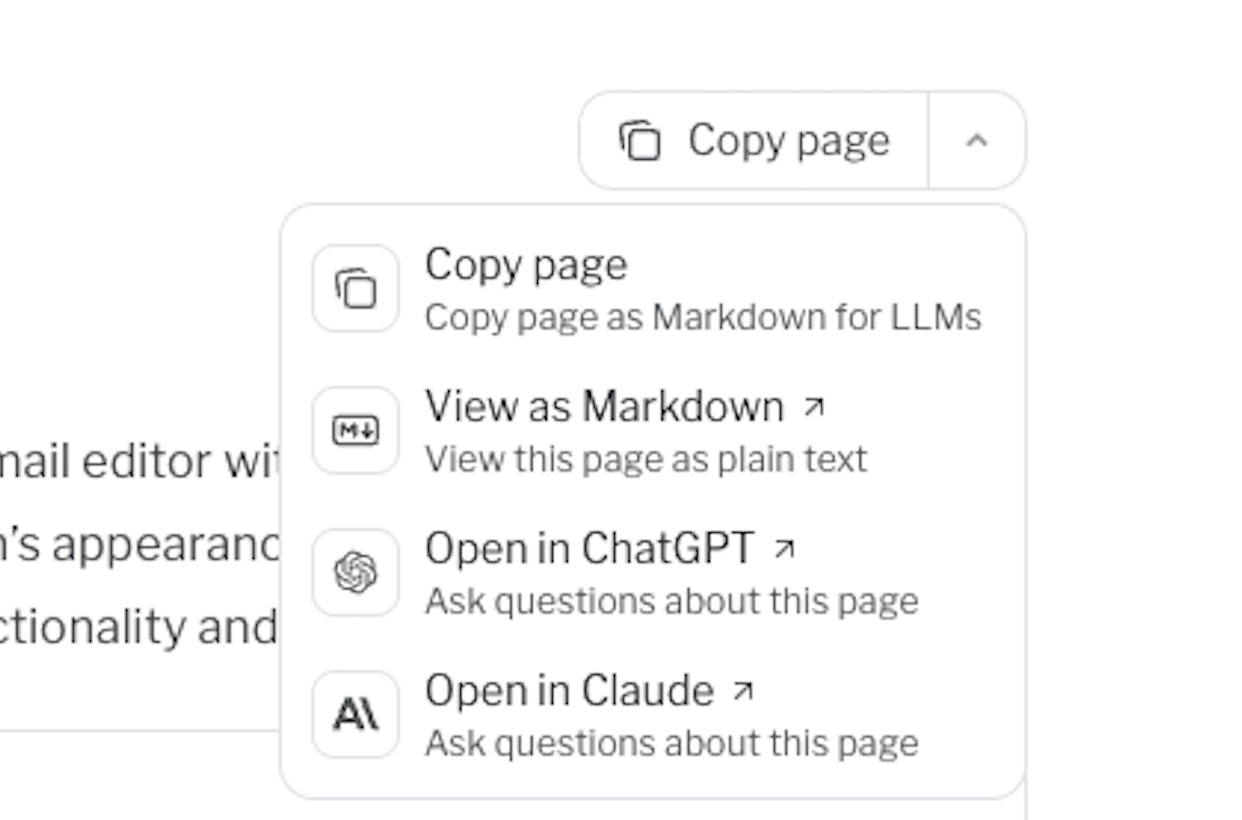
Tips for working with AI agents
- Be specific in your prompts. Ask your agent to “look up the Kit API v4 subscribers endpoint” rather than “how does Kit work” — targeted queries return better results.
- Combine with page-level context. For deep dives into a single topic, use the “Copy page” button on any docs page alongside your MCP-connected agent.
- Verify important details. AI agents can misinterpret or hallucinate details — always verify generated code against the API reference before shipping.
If you run into issues or have feedback on the Kit Developer Docs MCP server, reach out to us via the Kit Developer Community.