> ## Documentation Index
> Fetch the complete documentation index at: https://developers.kit.com/llms.txt
> Use this file to discover all available pages before exploring further.
# Media source plugin settings
> Media gallery settings components
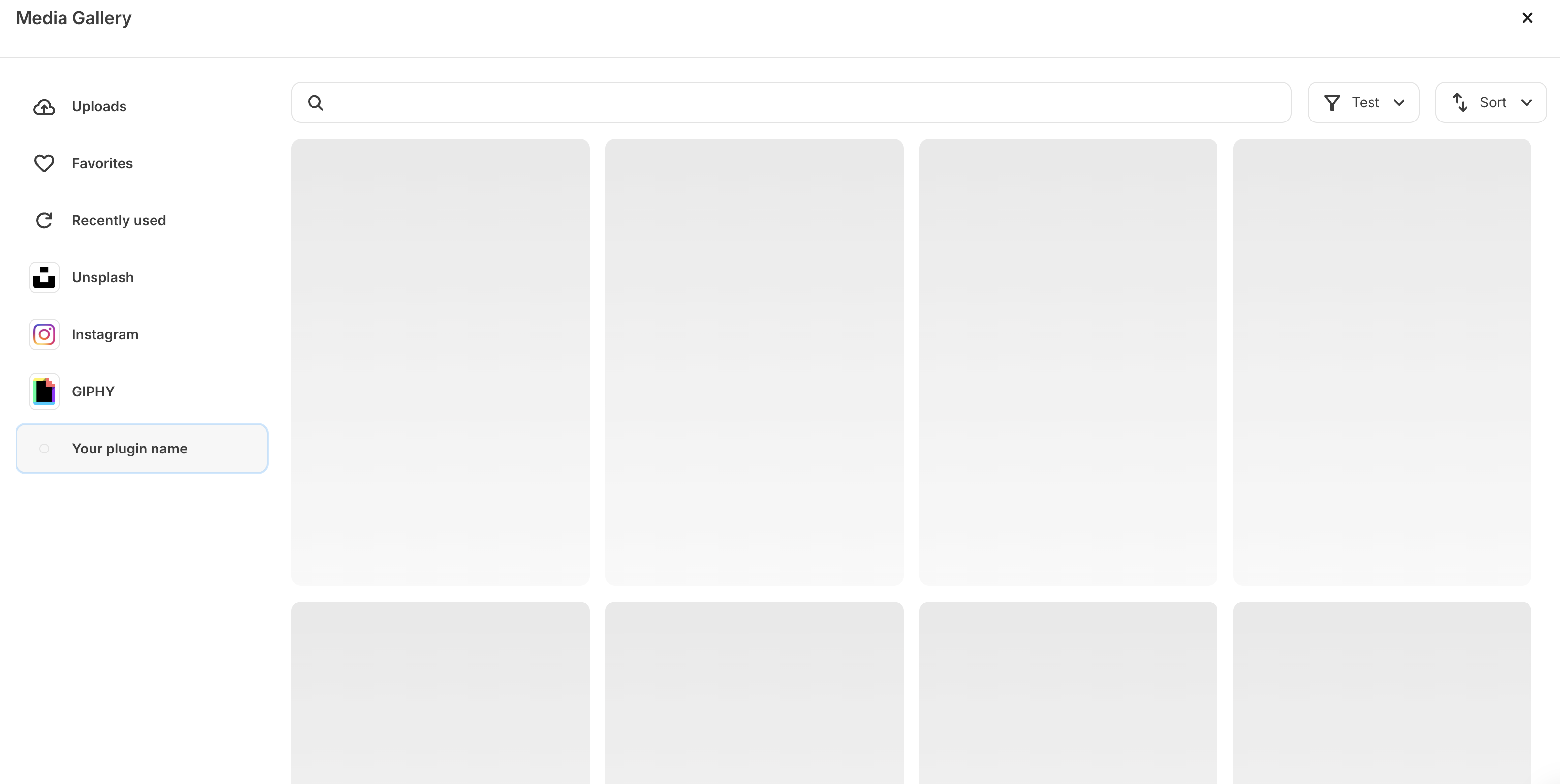
This guide explains all of the media gallery settings components that are available to be used in your plugin's [settings JSON](/plugins/media-source/plugin-configuration#settings-json) configuration, giving your app users the ability to find the media they want to add into their email content.
 ## Compatible settings components
* [Dynamic select input](/plugins/component-library/dynamic-select-input)
* [Select input](/plugins/component-library/select-input)
* [Text input](/plugins/component-library/text-input)
Components for media source plugins work slightly differently than other plugin types. Check below to see how to utilize our preset `search`, `filter` and `sort` functionality, powered by `groups`:
### Search
The optional search functionality utilizes a [text input component](/plugins/component-library/text-input), housed in a media source specific `group` called `search_group` - offering a way for creators to filter your images through a text filter.
```json theme={null}
{
"type": "group",
"name": "search_group",
"settings": [
{
"type": "text",
"name": "search",
"label": "Search",
"help": "Search Giphy",
"required": false
}
]
}
```
It is good practice to make this as smart as possible - ensuring that you return the elements that make sense with the text inputted by the user. This means matching against the name of the image, but also any other relevant metadata a creator may be filtering by (e.g. you may want to include the name of the Folder within the search logic).
Upon keystroke, a new POST request will be made to the `request URL` specified, with the text inputted, for your app to return a newly sorted version of results.
## Compatible settings components
* [Dynamic select input](/plugins/component-library/dynamic-select-input)
* [Select input](/plugins/component-library/select-input)
* [Text input](/plugins/component-library/text-input)
Components for media source plugins work slightly differently than other plugin types. Check below to see how to utilize our preset `search`, `filter` and `sort` functionality, powered by `groups`:
### Search
The optional search functionality utilizes a [text input component](/plugins/component-library/text-input), housed in a media source specific `group` called `search_group` - offering a way for creators to filter your images through a text filter.
```json theme={null}
{
"type": "group",
"name": "search_group",
"settings": [
{
"type": "text",
"name": "search",
"label": "Search",
"help": "Search Giphy",
"required": false
}
]
}
```
It is good practice to make this as smart as possible - ensuring that you return the elements that make sense with the text inputted by the user. This means matching against the name of the image, but also any other relevant metadata a creator may be filtering by (e.g. you may want to include the name of the Folder within the search logic).
Upon keystroke, a new POST request will be made to the `request URL` specified, with the text inputted, for your app to return a newly sorted version of results.
 ### Filter
The optional filter functionality allows plugins to offer a flat, single-select dropdown the creator can select from to help them find the content they are looking for. This can be predefined through use of the [select input component](/plugins/component-library/select-input) or programmatically generated as the plugin loads, through use of the [dynamic select input component](/plugins/component-library/dynamic-select-input).
### Filter
The optional filter functionality allows plugins to offer a flat, single-select dropdown the creator can select from to help them find the content they are looking for. This can be predefined through use of the [select input component](/plugins/component-library/select-input) or programmatically generated as the plugin loads, through use of the [dynamic select input component](/plugins/component-library/dynamic-select-input).
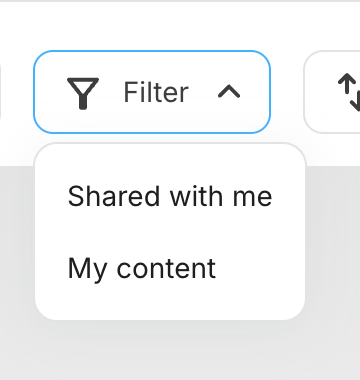 Regardless of whether your plugin utilizes a [select input component](/plugins/component-library/select-input) or a [dynamic select input component](/plugins/component-library/dynamic-select-input), this will also need be housed in a media source specific `group`, named `filter_group`.
Examples for each can be found below:
```json Select input theme={null}
{
"type": "group",
"name": "filter_group",
"settings": [
{
"type": "select",
"label": "Rating",
"name": "rating",
"options": [
{ "label": "G", "value": "g" },
{ "label": "PG", "value": "pg" },
{ "label": "PG-13", "value": "pg-13" },
{ "label": "R", "value": "r" }
],
"required": false
}
]
}
```
```json Dynamic select input theme={null}
{
"type": "group",
"name": "filter_group",
"settings": [
{
"type": "dynamicSelect",
"label": "Folders",
"name": "folder",
"request_url": "https://example-plugin.com/folders",
"required": false
}
]
}
```
### Sort
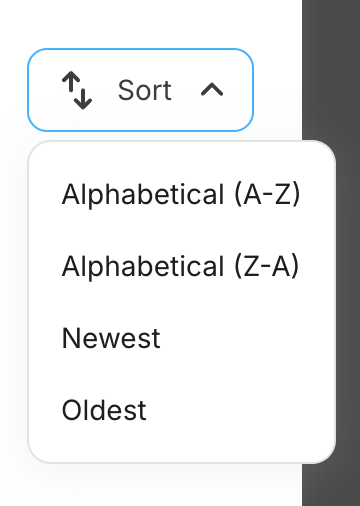
The optional sort functionality utilizes a [select input component](/plugins/component-library/select-input) to offer a flat list of sort options the creator can select from, each with a `label` and `value` nested in an `options` array. Once an `option` is selected, a new POST request will be made to the *Request URL* specified, with the value selected, for your app to return a newly sorted version of results. This will need to be encased by a media source specific `group` named `sort_group`.
```json theme={null}
{
"type": "group",
"name": "sort_group",
"settings": [
{
"type": "select",
"name": "sort",
"label": "Sort",
"options": [
{ "label": "Alphabetical (A-Z)", "value": "alphabetical_asc" },
{ "label": "Alphabetical (Z-A)", "value": "alphabetical_desc" }
]
}
]
}
```
Regardless of whether your plugin utilizes a [select input component](/plugins/component-library/select-input) or a [dynamic select input component](/plugins/component-library/dynamic-select-input), this will also need be housed in a media source specific `group`, named `filter_group`.
Examples for each can be found below:
```json Select input theme={null}
{
"type": "group",
"name": "filter_group",
"settings": [
{
"type": "select",
"label": "Rating",
"name": "rating",
"options": [
{ "label": "G", "value": "g" },
{ "label": "PG", "value": "pg" },
{ "label": "PG-13", "value": "pg-13" },
{ "label": "R", "value": "r" }
],
"required": false
}
]
}
```
```json Dynamic select input theme={null}
{
"type": "group",
"name": "filter_group",
"settings": [
{
"type": "dynamicSelect",
"label": "Folders",
"name": "folder",
"request_url": "https://example-plugin.com/folders",
"required": false
}
]
}
```
### Sort
The optional sort functionality utilizes a [select input component](/plugins/component-library/select-input) to offer a flat list of sort options the creator can select from, each with a `label` and `value` nested in an `options` array. Once an `option` is selected, a new POST request will be made to the *Request URL* specified, with the value selected, for your app to return a newly sorted version of results. This will need to be encased by a media source specific `group` named `sort_group`.
```json theme={null}
{
"type": "group",
"name": "sort_group",
"settings": [
{
"type": "select",
"name": "sort",
"label": "Sort",
"options": [
{ "label": "Alphabetical (A-Z)", "value": "alphabetical_asc" },
{ "label": "Alphabetical (Z-A)", "value": "alphabetical_desc" }
]
}
]
}
```