> ## Documentation Index
> Fetch the complete documentation index at: https://developers.kit.com/llms.txt
> Use this file to discover all available pages before exploring further.
# Media source plugin configuration
> Setting up your media source plugins
Kit's media source plugin lets you extend our email editor to allow creators to natively add images from external sources into their content. This guide walks you through configuring your plugin's appearance, behavior, and settings—from naming and visual presentation to backend functionality and user controls.
 ## Name
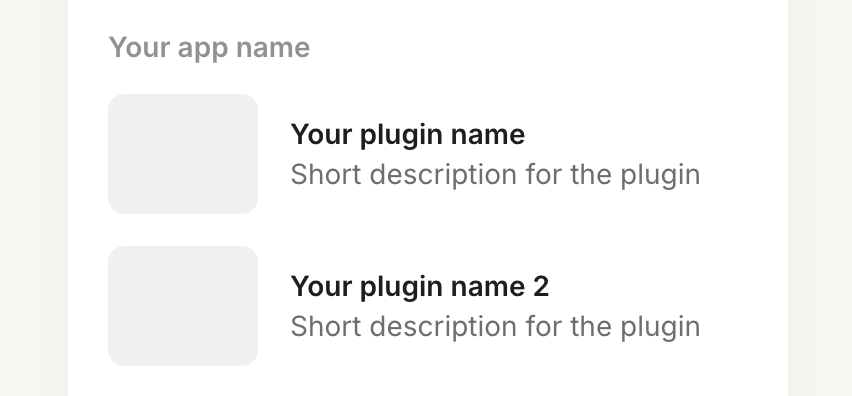
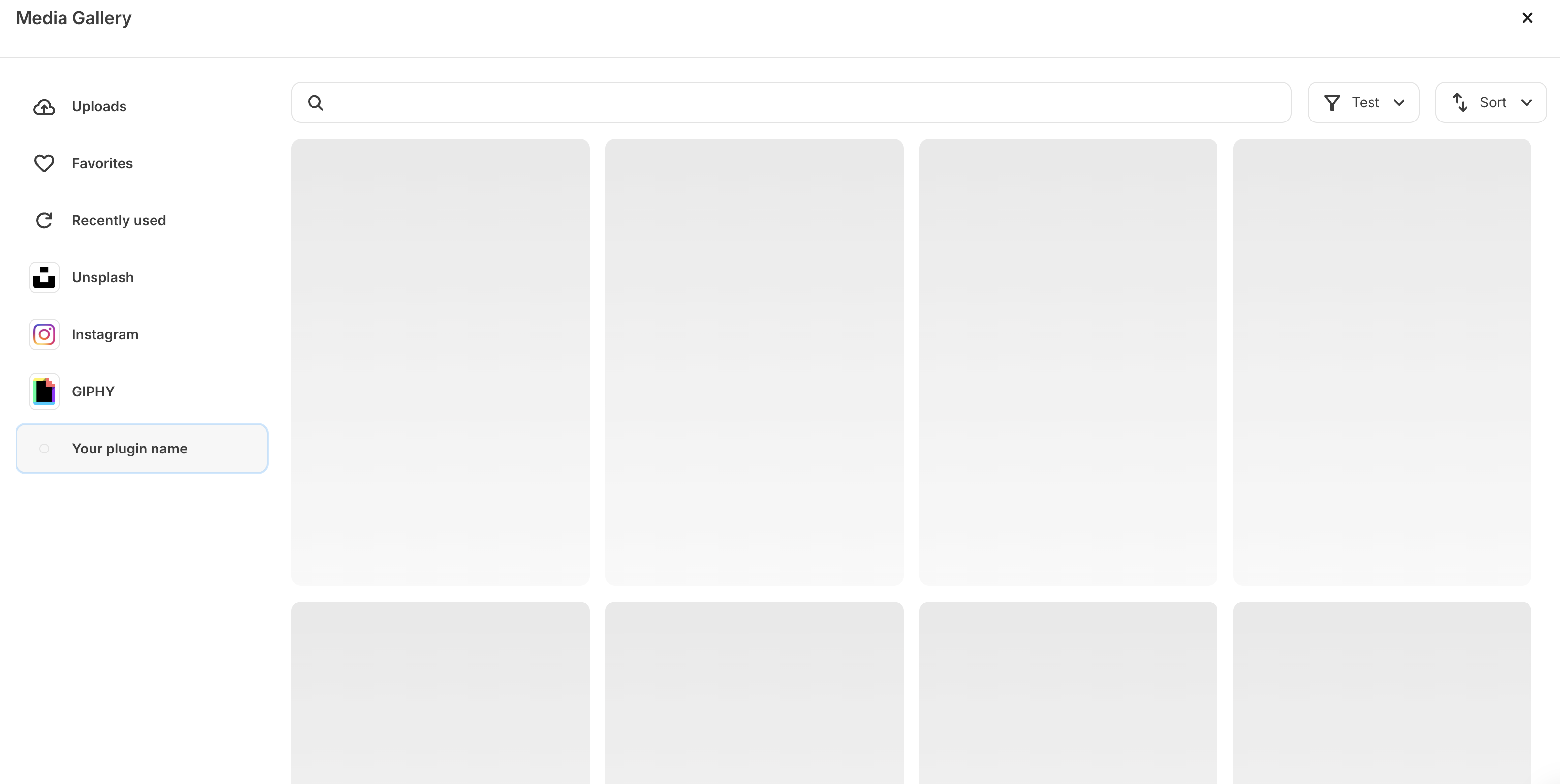
The plugin `name` is the user-facing name for your block and will be shown in the content block menu and in the media gallery itself. In the example above, the plugin `name` is “Your plugin name”. Your name should be short, ideally one or two words.
## Description
The `description` is a short phrase describing your media source. It will appear underneath the name in the content block menu. In the example above this is set to “Short description for the plugin”.
## Sort order
If you have multiple media sources within the same app, the `sort order` determines their placement within both the media gallery and the content block menu. In the images above, “Your plugin name” has a `sort order` of 0, while “Your plugin name 2” has a `sort order` of 1.
## Logo
The `logo` is an image for the element to be displayed alongside the `name` and the `description`. Only PNG, GIF, JPEG extensions are supported. The recommended size is 150x120px.
## Request URL
The `request URL` is the URL of an endpoint on your server that returns the list of images, complete with all the necessary properties to render the images in the gallery and place them within the email content for use by the creator.
You’ll generate this response based on the settings you’ve defined for your media source (outlined in the next section). Once a user completes all required settings, we’ll make a POST request to your `request URL`.
The request will contain a `settings` object with the user’s selected values for each of your search, filter, and sort settings, as well as pagination details, like so:
```
GET ?
after=WzE0XQ==&
settings[query]=Dogs&
settings[label]=My Media&
settings[sort]=updated_desc
```
A cursor for paginating forwards through the media items.
A cursor for paginating backwards through the media items.
A number to limit the amount of media items returned in the payload.
A setting value entered. The name will be set to the
## Name
The plugin `name` is the user-facing name for your block and will be shown in the content block menu and in the media gallery itself. In the example above, the plugin `name` is “Your plugin name”. Your name should be short, ideally one or two words.
## Description
The `description` is a short phrase describing your media source. It will appear underneath the name in the content block menu. In the example above this is set to “Short description for the plugin”.
## Sort order
If you have multiple media sources within the same app, the `sort order` determines their placement within both the media gallery and the content block menu. In the images above, “Your plugin name” has a `sort order` of 0, while “Your plugin name 2” has a `sort order` of 1.
## Logo
The `logo` is an image for the element to be displayed alongside the `name` and the `description`. Only PNG, GIF, JPEG extensions are supported. The recommended size is 150x120px.
## Request URL
The `request URL` is the URL of an endpoint on your server that returns the list of images, complete with all the necessary properties to render the images in the gallery and place them within the email content for use by the creator.
You’ll generate this response based on the settings you’ve defined for your media source (outlined in the next section). Once a user completes all required settings, we’ll make a POST request to your `request URL`.
The request will contain a `settings` object with the user’s selected values for each of your search, filter, and sort settings, as well as pagination details, like so:
```
GET ?
after=WzE0XQ==&
settings[query]=Dogs&
settings[label]=My Media&
settings[sort]=updated_desc
```
A cursor for paginating forwards through the media items.
A cursor for paginating backwards through the media items.
A number to limit the amount of media items returned in the payload.
A setting value entered. The name will be set to the name configured for the plugin setting.
Response Schema: *application/json*
Pagination information for the payload
Whether there is a previous page of media items to cycle back to.
Whether there is a next page of media items to cycle through.
A cursor identifying the first record of the returned media items that can be used with the `before` query param to fetch the previous page's items. If there is no previous page (on the first page) this should be null.
A cursor identifying the last record of the returned media items that can be used with the `after` query param to fetch the next page's items. If there is no next page (on the last page) this should be null.
At most how many records were limited to the payload.
The list of media items for the page
A unique identifier for the media.
The type of media - only `image` is only supported at this moment.
A link to the media item
A link to the media item's thumbnail
A textual description of the media item
The default caption to be used to describe the media item. The creator will be able to overwrite this when selecting the media.
A label for the creator to identify the media item. This is only shown to the creator for organizing their media items.
Whether the media should always be directly used and embedded via the href. Setting to `true` will prevent the image from being reuploaded on Kit's servers.
A URL to an endpoint that accepts can accept a POST request for notifying that the media was downloaded.
Information about the media creator for attribution.
A short label to use when the media is displayed to attribute the original creator
A link to the original creator.
```json 200 response theme={null}
{
"pagination": {
"has_previous_page": false,
"has_next_page": true,
"start_cursor": "WzEzXQ==",
"end_cursor": "WzE0XQ==",
"per_page": 100
},
"data": [
{
"id": "example1",
"type": "image",
"url": "https://picsum.photos/600/900",
"thumbnail_url": "https://picsum.photos/200/400",
"alt": "Lorem ipsum odor amet, consectetuer adipiscing elit."
},
{
"id": "example2",
"type": "image",
"url": "https://picsum.photos/500/800",
"thumbnail_url": "https://picsum.photos/200/400",
"alt": "Sed do eiusmod tempor incididunt ut labore et dolore magna aliqua."
}
]
}
```
```json 200 response with additional properties theme={null}
{
"pagination": {
"has_previous_page": false,
"has_next_page": true,
"start_cursor": "WzEzXQ==",
"end_cursor": "WzE0XQ==",
"per_page": 100
},
"data": [
{
"id": "example1",
"type": "image",
"url": "https://picsum.photos/600/900",
"thumbnail_url": "https://picsum.photos/600/900",
"alt": "Lorem ipsum odor amet, consectetuer adipiscing elit.",
"caption": "Lorem ipsum odor amet",
"title": "example.png",
"notify_download_url": "https://media-gallery-plugin.com/media/0/downloaded",
"hotlink": true,
"attribution": {
"label": "Johnny Appleseed",
"href": "https://example.com/johnny_appleseed?utm_source=your_app_name&utm_medium=referral"
}
}
]
}
```
*Note* - your app should also handle the empty case, ensuring you show some media by default when the creator opens up your plugin without interacting with any of the configuration elements your app offers.
If you've encountered an error, return an object containing an errors array of strings. You may add as many errors to this array as you’d like.
```json theme={null}
{
"data": [],
"errors": ["Plan not found"]
}
```
## Settings JSON
The media gallery supports three optional groups that settings can be placed in: `search_group`, `filter_group`, & `sort_group`. Each group currently accepts a single setting that can be used by creators to filter and sort your content for ease of use.
Configuration with a search, filter and sort component could look like so:
```json Example JSON [expandable] theme={null}
[
{
"type": "group",
"name": "search_group",
"label": "search",
"settings": [
{
"type": "text",
"name": "search",
"label": "Search",
"help": "Search Giphy",
"required": false
}
]
},
{
"type": "group",
"name": "filter_group",
"label": "filter",
"settings": [
{
"type": "select",
"label": "Rating",
"name": "rating",
"options": [
{ "label": "G", "value": "g" },
{ "label": "PG", "value": "pg" },
{ "label": "PG-13", "value": "pg-13" }
],
"required": false
}
]
},
{
"type": "group",
"name": "sort_group",
"label": "sort",
"settings": [
{
"type": "select",
"name": "sort",
"label": "Sort",
"options": [
{ "label": "Alphabetical (A-Z)", "value": "alphabetical_asc" },
{ "label": "Alphabetical (Z-A)", "value": "alphabetical_desc" }
]
}
]
}
]
```
Details on the individual configuration options can be found on the [plugin settings page](/plugins/media-source/plugin-settings).