> ## Documentation Index
> Fetch the complete documentation index at: https://developers.kit.com/llms.txt
> Use this file to discover all available pages before exploring further.
# Automation node plugin configuration
> Setting up your automation node plugins
Kit's automation node plugins let you extend Kit's visual automation tools with custom nodes that enhance workflow capabilities. This guide walks you through configuring your plugin's appearance, behavior, and settings—from naming and visual presentation to backend functionality and user controls.
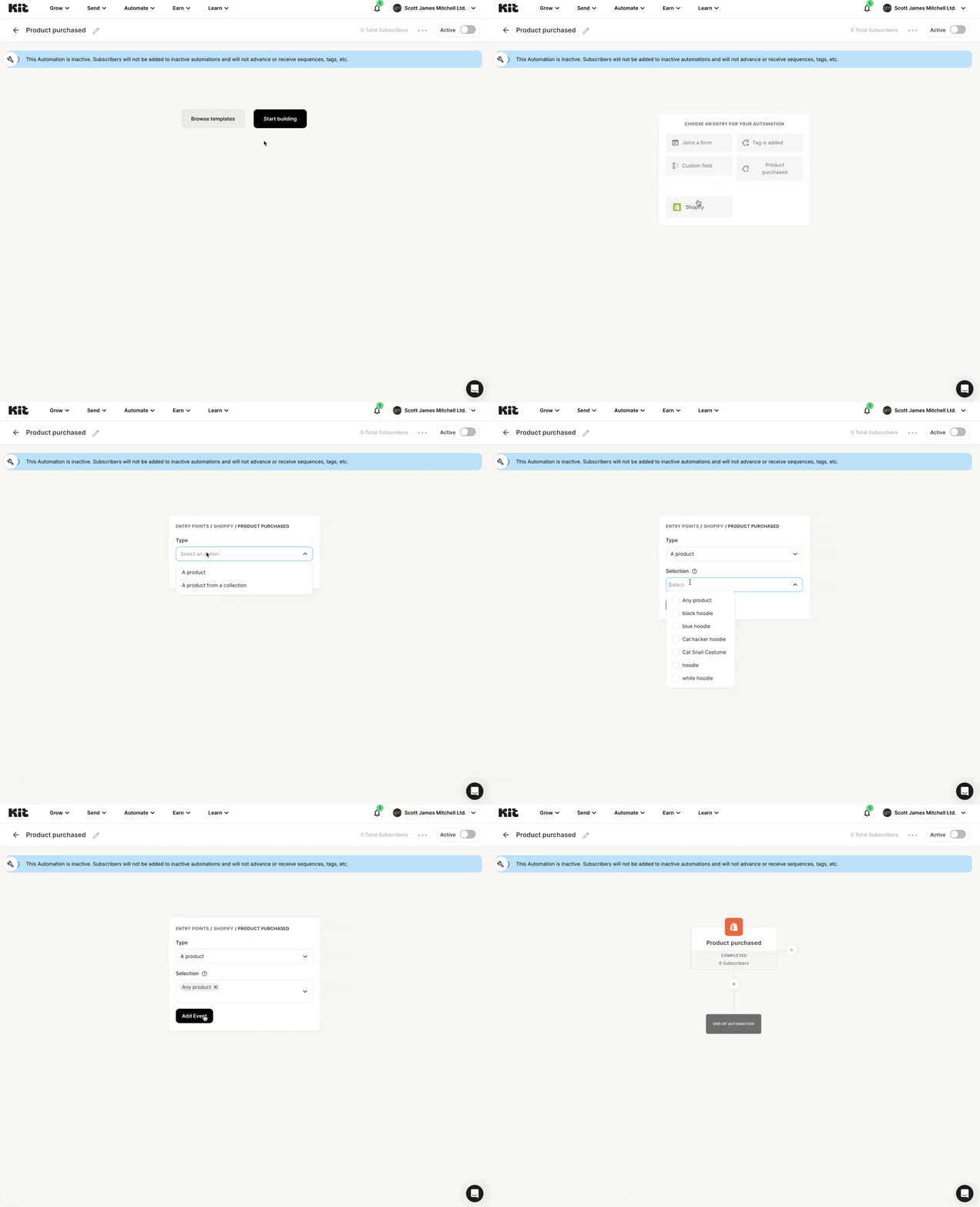
This product purchased example shows an event node that is configured with a
`select` input, followed by a dependent `search` input, allowing a creator
to filter which products the event node fires for:
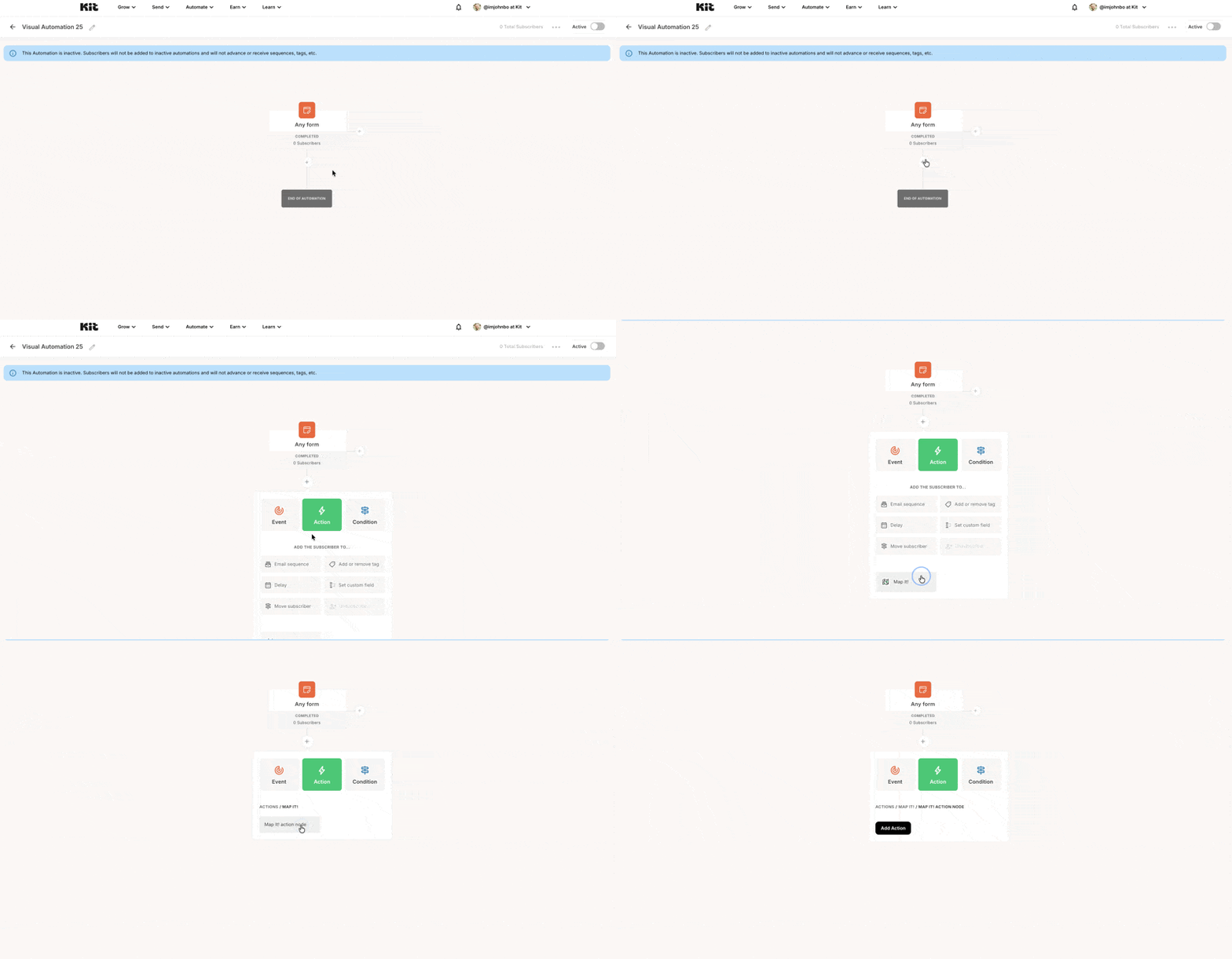
 This bare bones example shows how a creator selects an action node plugin.
 ## Name
The plugin `name` is the user-facing name for your node. In the automation node insertion menu example above, “Product purchased” is a `name`. It will appear in the editor’s node menu, and also in the breadcrumbs at the top of the configuration form when your node is selected. Your `name` should be short, ideally one or two words.
## Description
The `description` is a short phrase describing your node.
## Sort order
If you offer multiple nodes, the `sort order` determines their placement.
## Icon
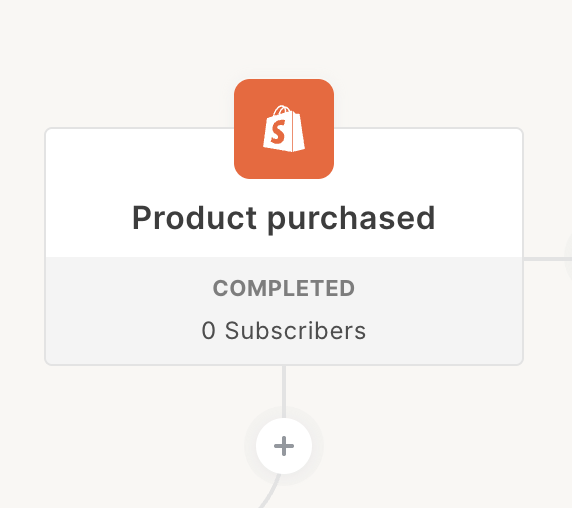
The `icon` is an image for the node, displayed in a box above the plugin's `name`. As the box is color-coded automatically, based on the node type, a monochrome SVG is highly recommended. PNG, GIF, JPEG extensions are also supported. The aspect ratio should be 1:1.
## Name
The plugin `name` is the user-facing name for your node. In the automation node insertion menu example above, “Product purchased” is a `name`. It will appear in the editor’s node menu, and also in the breadcrumbs at the top of the configuration form when your node is selected. Your `name` should be short, ideally one or two words.
## Description
The `description` is a short phrase describing your node.
## Sort order
If you offer multiple nodes, the `sort order` determines their placement.
## Icon
The `icon` is an image for the node, displayed in a box above the plugin's `name`. As the box is color-coded automatically, based on the node type, a monochrome SVG is highly recommended. PNG, GIF, JPEG extensions are also supported. The aspect ratio should be 1:1.
 ## Request URL
The `Request URL` is the URL of an endpoint on your server that we will poll to trigger the automation node effects. The returned data will be unique based on the type of automation node created.
For events, the `request url` returns a paginated array of events containing subscriber information. This endpoint’s job is to return subscribers who have experienced the configured event since the provided timestamp so Kit can progress them through the automation.
You’ll return these events based on the settings you’ve defined for your node (outlined in the [plugin settings page](/plugins/automation-nodes/plugin-settings)). We’ll make a GET request to your `Request URL` approximately every 5 minutes. The request will contain a `settings` object with the user’s selected values for each of your settings and a timestamp to return events that occurred after.
We also include some pagination params—`before` and `after` cursors as well as `per_page` to control the page size and how many events can be returned. We will reject responses larger than our requested page size.
All parameters are sent as query string parameters:
```
GET {request_url}?settings[title]=My+title&settings[since]=2025-05-16T15%3A26%3A41Z&after=&before=&per_page=100
```
Which represents the following structure:
```json theme={null}
{
"settings": {
// The exact data in this section depends on how you’ve configured your
// plugin’s JSON settings (see next section).
"title": "My title",
"description": "My description",
// The `since` timestamp will always be in ISO8601 format
"since": "2025-05-16T15:26:41Z"
},
"after": null,
"before": null,
"per_page": 100
}
```
Your endpoint should return a cursor-paginated array of events containing subscriber information. Each event may also include an optional `context` object — the data you attach here is what creators can later reference in Liquid (in sequence emails and button URLs), pull into a [dynamic content block](/plugins/content-blocks/dynamic-blocks/overview), or receive on a downstream action plugin's request payload. See [Event context](#event-context) below.
```json theme={null}
{
"data": [
{
"subscriber_id": 3313198664,
"context": {
"checkout_url": "https://example.com/cart/checkout/abc",
"products": [
{ "name": "Vintage Wool Sweater", "price": "$89.00", "quantity": 1 }
],
"total": "$89.00"
}
},
{
"subscriber_id": 3236514736
}
]
"pagination": {
"has_previous_page": false,
"has_next_page": false, // required
"start_cursor": "WzE0NV0=",
"end_cursor": "WzE0NF0=",
"per_page": 100 // required
}
}
```
If you've encountered an error, return an object containing an `errors` array of strings. You may add as many errors to this array as you’d like:
```json theme={null}
{
"code": 404,
"errors": ["Plan not found"]
}
```
For actions, the `request url` returns an object with `successes` and `failures` that are each an array of actions containing subscriber information. This endpoint’s job is to return subscribers that the app has acted upon so Kit can progress them through the automation.
You’ll return these actions based on the settings you’ve defined for your node (outlined in the [plugin settings page](/plugins/automation-nodes/plugin-settings)). We’ll make a POST request to your `Request URL` when subscribers move through a creator's automation (at most every 5 minutes). The request will contain a `settings` object with the user’s selected values for each of your settings and an array of subscribers for the app to act on.
We *do not* include pagination params since we are providing the app server with subscribers. The response should never contain more subscribers than what was provided in the request.
```json theme={null}
{
"settings": {
// The exact data in this section depends on how you've configured your
// plugin's JSON settings (see next section).
"title": "My title",
"description": "My description",
// The `since` timestamp will always be in ISO8601 format
"since": "2025-05-16T15:26:41Z"
},
"subscribers": [
{
"id": 11,
"context": {
"apps": {
"shopify": {
"abandoned_cart": {
"checkout_url": "https://example.com/cart/checkout/abc",
"total": "$89.00"
}
}
}
}
},
{ "id": 22 }
]
}
```
Each subscriber may include an optional `context` object containing the accumulated VA event context for that subscriber, keyed as `context.apps...*`. Subscribers with no stored context omit the key. See [Receiving VA context on action payloads](#receiving-va-context-on-action-payloads) below.
Your endpoint should return an object with 2 arrays of actions containing subscriber information. One for `successes` and one for `failures`:
```json theme={null}
{
"data": {
"successes": [
{
"subscriber_id": 3313198664
},
{
"subscriber_id": 3236514736
}
],
"failures": [
{
"subscriber_id": 3203473421
}
]
}
}
```
If you've encountered an error, return an object containing an `errors` array of strings. You may add as many errors to this array as you’d like:
```json theme={null}
{
"code": 404,
"errors": ["Plan not found"]
}
```
## Settings JSON
This field allows you to configure the creator-facing settings for your node. It should be an array of objects; one object for each setting.
For example, this would be the JSON configuration for a plugin with two settings: “Type” and a dynamic "Selection" field, dependent on "Type".
```json theme={null}
[
{
"name": "type",
"label": "Type",
"required": true,
"help": "",
"type": "select",
"options": [
{
"label": "A product",
"value": "product"
},
{
"label": "A product from a collection",
"value": "collection"
}
],
"placeholder": ""
},
{
"name": "resources",
"label": "Selection",
"required": true,
"help": "Select your product(s) or collection(s)",
"type": "search",
"multiselect": true,
"placeholder": "",
"request_url": "https://app.example.com/resources/search",
"dependencies": ["type"]
}
]
```
Each setting’s `type` determines the UI rendered (such as a text input or a select dropdown); all available options are listed under the [plugin settings page](/plugins/automation-nodes/plugin-settings).
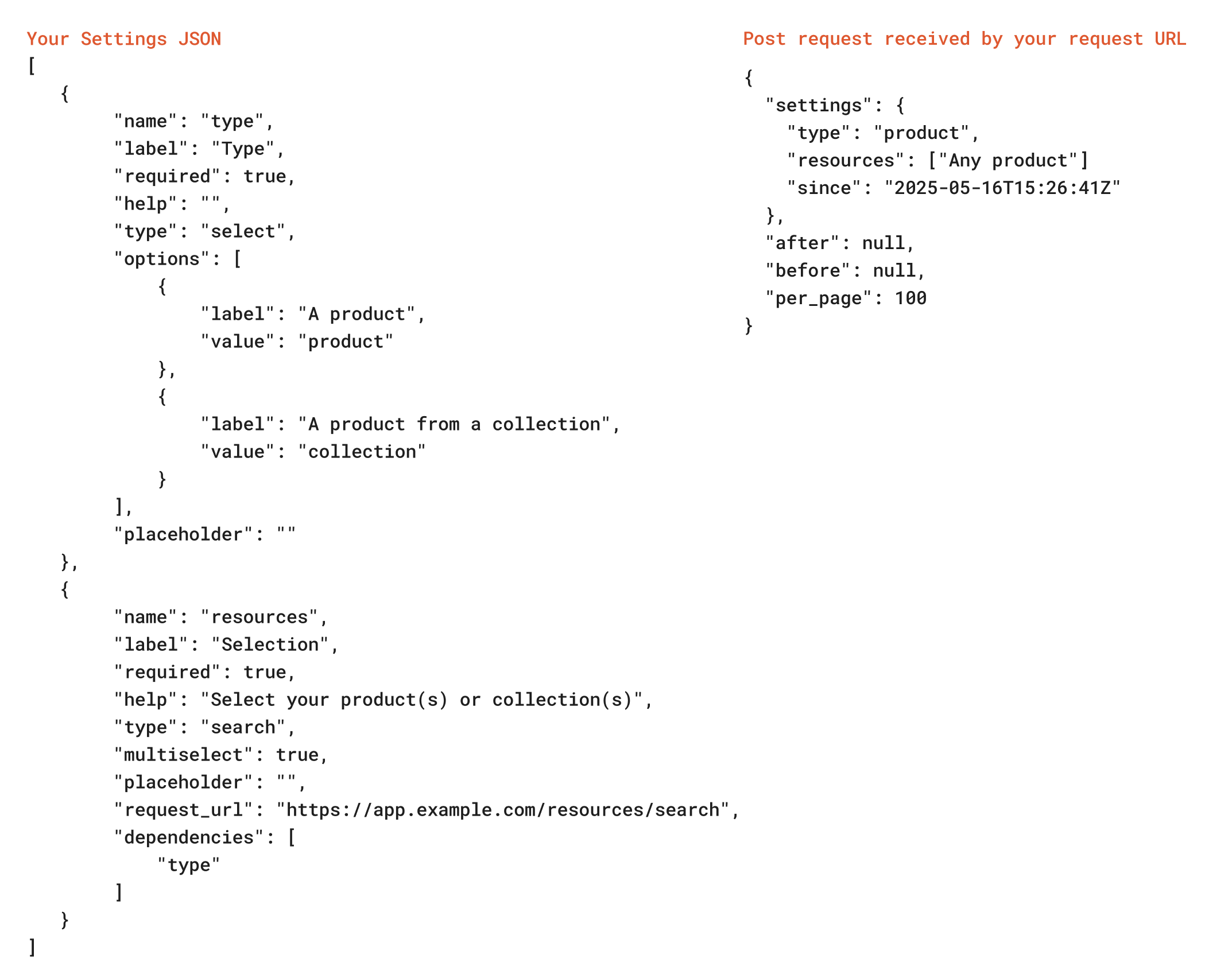
The `name` for each setting is used as the key in your events request:
## Request URL
The `Request URL` is the URL of an endpoint on your server that we will poll to trigger the automation node effects. The returned data will be unique based on the type of automation node created.
For events, the `request url` returns a paginated array of events containing subscriber information. This endpoint’s job is to return subscribers who have experienced the configured event since the provided timestamp so Kit can progress them through the automation.
You’ll return these events based on the settings you’ve defined for your node (outlined in the [plugin settings page](/plugins/automation-nodes/plugin-settings)). We’ll make a GET request to your `Request URL` approximately every 5 minutes. The request will contain a `settings` object with the user’s selected values for each of your settings and a timestamp to return events that occurred after.
We also include some pagination params—`before` and `after` cursors as well as `per_page` to control the page size and how many events can be returned. We will reject responses larger than our requested page size.
All parameters are sent as query string parameters:
```
GET {request_url}?settings[title]=My+title&settings[since]=2025-05-16T15%3A26%3A41Z&after=&before=&per_page=100
```
Which represents the following structure:
```json theme={null}
{
"settings": {
// The exact data in this section depends on how you’ve configured your
// plugin’s JSON settings (see next section).
"title": "My title",
"description": "My description",
// The `since` timestamp will always be in ISO8601 format
"since": "2025-05-16T15:26:41Z"
},
"after": null,
"before": null,
"per_page": 100
}
```
Your endpoint should return a cursor-paginated array of events containing subscriber information. Each event may also include an optional `context` object — the data you attach here is what creators can later reference in Liquid (in sequence emails and button URLs), pull into a [dynamic content block](/plugins/content-blocks/dynamic-blocks/overview), or receive on a downstream action plugin's request payload. See [Event context](#event-context) below.
```json theme={null}
{
"data": [
{
"subscriber_id": 3313198664,
"context": {
"checkout_url": "https://example.com/cart/checkout/abc",
"products": [
{ "name": "Vintage Wool Sweater", "price": "$89.00", "quantity": 1 }
],
"total": "$89.00"
}
},
{
"subscriber_id": 3236514736
}
]
"pagination": {
"has_previous_page": false,
"has_next_page": false, // required
"start_cursor": "WzE0NV0=",
"end_cursor": "WzE0NF0=",
"per_page": 100 // required
}
}
```
If you've encountered an error, return an object containing an `errors` array of strings. You may add as many errors to this array as you’d like:
```json theme={null}
{
"code": 404,
"errors": ["Plan not found"]
}
```
For actions, the `request url` returns an object with `successes` and `failures` that are each an array of actions containing subscriber information. This endpoint’s job is to return subscribers that the app has acted upon so Kit can progress them through the automation.
You’ll return these actions based on the settings you’ve defined for your node (outlined in the [plugin settings page](/plugins/automation-nodes/plugin-settings)). We’ll make a POST request to your `Request URL` when subscribers move through a creator's automation (at most every 5 minutes). The request will contain a `settings` object with the user’s selected values for each of your settings and an array of subscribers for the app to act on.
We *do not* include pagination params since we are providing the app server with subscribers. The response should never contain more subscribers than what was provided in the request.
```json theme={null}
{
"settings": {
// The exact data in this section depends on how you've configured your
// plugin's JSON settings (see next section).
"title": "My title",
"description": "My description",
// The `since` timestamp will always be in ISO8601 format
"since": "2025-05-16T15:26:41Z"
},
"subscribers": [
{
"id": 11,
"context": {
"apps": {
"shopify": {
"abandoned_cart": {
"checkout_url": "https://example.com/cart/checkout/abc",
"total": "$89.00"
}
}
}
}
},
{ "id": 22 }
]
}
```
Each subscriber may include an optional `context` object containing the accumulated VA event context for that subscriber, keyed as `context.apps...*`. Subscribers with no stored context omit the key. See [Receiving VA context on action payloads](#receiving-va-context-on-action-payloads) below.
Your endpoint should return an object with 2 arrays of actions containing subscriber information. One for `successes` and one for `failures`:
```json theme={null}
{
"data": {
"successes": [
{
"subscriber_id": 3313198664
},
{
"subscriber_id": 3236514736
}
],
"failures": [
{
"subscriber_id": 3203473421
}
]
}
}
```
If you've encountered an error, return an object containing an `errors` array of strings. You may add as many errors to this array as you’d like:
```json theme={null}
{
"code": 404,
"errors": ["Plan not found"]
}
```
## Settings JSON
This field allows you to configure the creator-facing settings for your node. It should be an array of objects; one object for each setting.
For example, this would be the JSON configuration for a plugin with two settings: “Type” and a dynamic "Selection" field, dependent on "Type".
```json theme={null}
[
{
"name": "type",
"label": "Type",
"required": true,
"help": "",
"type": "select",
"options": [
{
"label": "A product",
"value": "product"
},
{
"label": "A product from a collection",
"value": "collection"
}
],
"placeholder": ""
},
{
"name": "resources",
"label": "Selection",
"required": true,
"help": "Select your product(s) or collection(s)",
"type": "search",
"multiselect": true,
"placeholder": "",
"request_url": "https://app.example.com/resources/search",
"dependencies": ["type"]
}
]
```
Each setting’s `type` determines the UI rendered (such as a text input or a select dropdown); all available options are listed under the [plugin settings page](/plugins/automation-nodes/plugin-settings).
The `name` for each setting is used as the key in your events request:
 When you save your plugin, we’ll validate your JSON settings - which can be pre-emptively validated [using the JSON schema validator linked here](https://www.jsonschemavalidator.net/s/ovDMo04X).
## Event context
Event plugins can attach an optional `context` object to each event returned from `request URL`. Kit stores this object per subscriber and exposes it elsewhere in the platform:
* In **sequence email** Liquid (body, button URLs, links) as `{{ automation...* }}`.
* In **[dynamic content blocks](/plugins/content-blocks/dynamic-blocks/overview)** that link to this event via the **Related event node** selector on the content block plugin's settings.
* On the **request body** of any downstream action plugin in the same VA, under `subscribers[].context.apps.*` — see below.
### Configure the sample data
On the event plugin's form in Developer Space, paste a JSON example into the **Sample data** field on the Context card. The top-level keys define the field names creators can reference in Liquid, and the nested values are used to render the editor preview for any dynamic content block linked to this event:
```json theme={null}
{
"checkout_url": "https://example.com/cart/checkout",
"products": [
{ "name": "Vintage Wool Sweater", "price": "$89.00", "quantity": 1 }
],
"total": "$89.00"
}
```
Kit auto-derives the field list from the top-level keys, so you don't maintain a separate field-names list.
### Provide the runtime context
At runtime, attach a `context` object to each event in your `fetch_events` response — see the **Event node request URL** example above. The shape should match the sample data you configured. Events without a `context` key are still progressed; subscribers simply won't have stored context for that event.
### Size limits
Kit applies the following limits to per-subscriber context to protect the send and outbound action pipelines:
| Limit | Value |
| -------------------------------------------------- | --------- |
| Bytes per single event's `context` | **64 KB** |
| Total bytes per subscriber's stored context | **64 KB** |
| Distinct app namespaces per subscriber | **32** |
| Keys per app namespace (events × top-level fields) | **64** |
Over-limit events are dropped before storage; over-limit merges are skipped. Existing context on the subscriber's row is preserved and the VA continues to progress. Drops are logged but not surfaced to the creator. Prefer compact, pre-trimmed payloads (top-N lists, pre-formatted display strings).
## Receiving VA context on action payloads
When a subscriber reaches your action plugin, Kit includes the accumulated VA context for that subscriber in the request body under `subscribers[].context`:
```json theme={null}
{
"subscribers": [
{
"id": 11,
"context": {
"apps": {
"shopify": {
"abandoned_cart": {
"checkout_url": "https://example.com/cart/checkout/abc",
"total": "$89.00"
}
}
}
}
},
{ "id": 22 }
]
}
```
* **`context.apps...*`** — the same context shape your event plugins (or other apps' event plugins) attached upstream in the VA.
* The key is **omitted** for subscribers with no stored context (not `context: {}`).
* The payload change is purely additive — existing actions that ignore `context` continue to work unchanged.
This lets your action endpoint resolve merge tags, build personalized webhook bodies, or include cart/order data in outbound SMS without an additional lookup to Kit. Action requests are sliced by both subscriber count and total body size so the request body stays under typical HTTP server limits.
When you save your plugin, we’ll validate your JSON settings - which can be pre-emptively validated [using the JSON schema validator linked here](https://www.jsonschemavalidator.net/s/ovDMo04X).
## Event context
Event plugins can attach an optional `context` object to each event returned from `request URL`. Kit stores this object per subscriber and exposes it elsewhere in the platform:
* In **sequence email** Liquid (body, button URLs, links) as `{{ automation...* }}`.
* In **[dynamic content blocks](/plugins/content-blocks/dynamic-blocks/overview)** that link to this event via the **Related event node** selector on the content block plugin's settings.
* On the **request body** of any downstream action plugin in the same VA, under `subscribers[].context.apps.*` — see below.
### Configure the sample data
On the event plugin's form in Developer Space, paste a JSON example into the **Sample data** field on the Context card. The top-level keys define the field names creators can reference in Liquid, and the nested values are used to render the editor preview for any dynamic content block linked to this event:
```json theme={null}
{
"checkout_url": "https://example.com/cart/checkout",
"products": [
{ "name": "Vintage Wool Sweater", "price": "$89.00", "quantity": 1 }
],
"total": "$89.00"
}
```
Kit auto-derives the field list from the top-level keys, so you don't maintain a separate field-names list.
### Provide the runtime context
At runtime, attach a `context` object to each event in your `fetch_events` response — see the **Event node request URL** example above. The shape should match the sample data you configured. Events without a `context` key are still progressed; subscribers simply won't have stored context for that event.
### Size limits
Kit applies the following limits to per-subscriber context to protect the send and outbound action pipelines:
| Limit | Value |
| -------------------------------------------------- | --------- |
| Bytes per single event's `context` | **64 KB** |
| Total bytes per subscriber's stored context | **64 KB** |
| Distinct app namespaces per subscriber | **32** |
| Keys per app namespace (events × top-level fields) | **64** |
Over-limit events are dropped before storage; over-limit merges are skipped. Existing context on the subscriber's row is preserved and the VA continues to progress. Drops are logged but not surfaced to the creator. Prefer compact, pre-trimmed payloads (top-N lists, pre-formatted display strings).
## Receiving VA context on action payloads
When a subscriber reaches your action plugin, Kit includes the accumulated VA context for that subscriber in the request body under `subscribers[].context`:
```json theme={null}
{
"subscribers": [
{
"id": 11,
"context": {
"apps": {
"shopify": {
"abandoned_cart": {
"checkout_url": "https://example.com/cart/checkout/abc",
"total": "$89.00"
}
}
}
}
},
{ "id": 22 }
]
}
```
* **`context.apps...*`** — the same context shape your event plugins (or other apps' event plugins) attached upstream in the VA.
* The key is **omitted** for subscribers with no stored context (not `context: {}`).
* The payload change is purely additive — existing actions that ignore `context` continue to work unchanged.
This lets your action endpoint resolve merge tags, build personalized webhook bodies, or include cart/order data in outbound SMS without an additional lookup to Kit. Action requests are sliced by both subscriber count and total body size so the request body stays under typical HTTP server limits.